
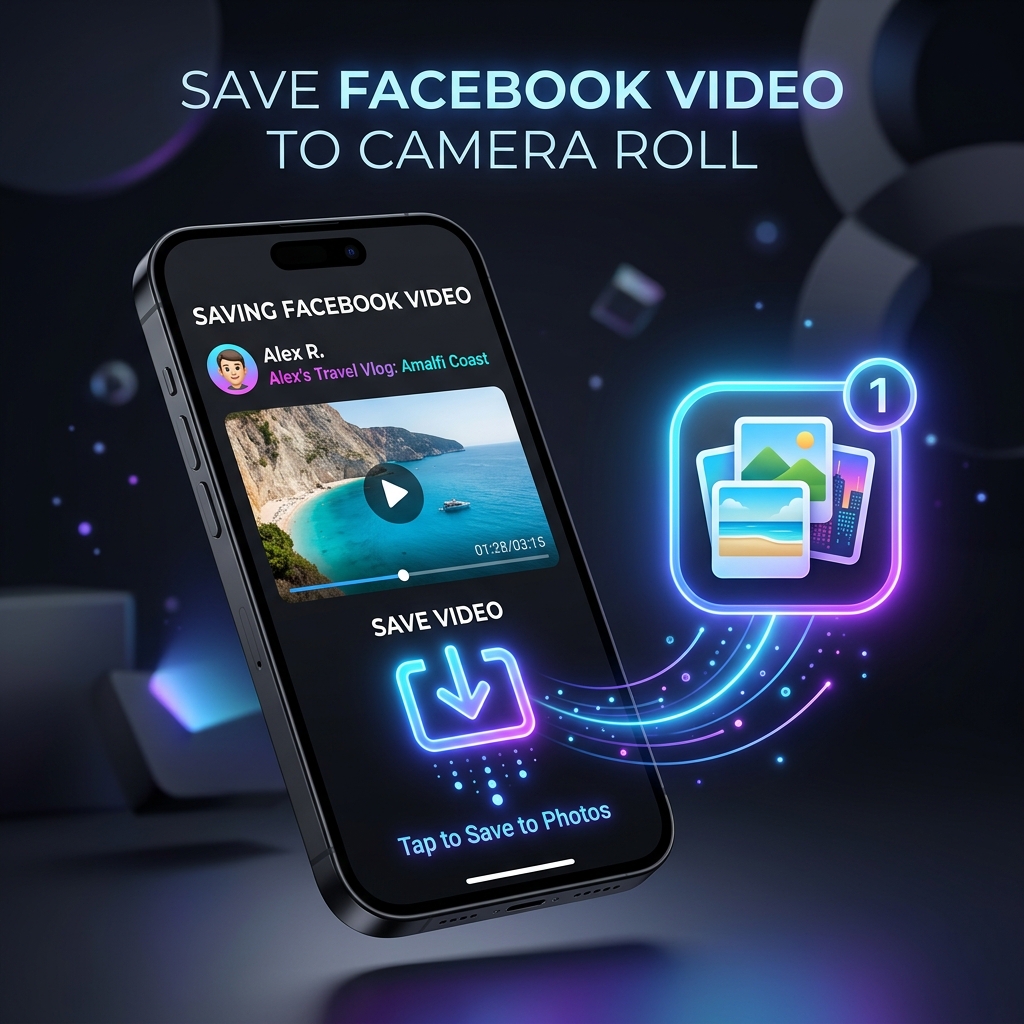
If you have successfully downloaded a Facebook video on your iPhone but cannot find it in your Photos app, you are not alone. By default, iOS saves files from Safari and Chrome into the local Files app rather than your Camera Roll.
Moving a downloaded MP4 video from your Downloads folder to your photo library is a simple process. This guide explains the key difference between local file storage and the Photos app on iOS, followed by a quick step-by-step tutorial on how to save downloaded Facebook videos directly to your iPhone Camera Roll.
Files vs. Photos: Why Downloads Don't Automatically Appear in Your Gallery
On iOS devices, files downloaded through web browsers (such as Safari or Google Chrome) go directly into sandboxed storage folders within the local system.
The Photos app (your Camera Roll) is restricted. iOS treats downloaded files (like PDF or MP4 documents) as local downloads, separating them from the media library to ensure security and organize file management. To see your video alongside your personal pictures and videos, you must manually instruct iOS to import it into your photos library.
If you have not downloaded the video yet, make sure to read our comprehensive iPhone download guide which shows how to use a web-based FB video downloader to get the file onto your phone first.
Steps to Save Downloaded Facebook Videos to Camera Roll
Once the video file has been saved to your local storage, follow these steps to move it to your photos library:
Step 1: Open the Files App
Find and tap the blue Files app icon on your iPhone.
Step 2: Locate the Downloaded Video File
- Tap the Browse tab at the bottom right.
- Select On My iPhone (or iCloud Drive depending on your browser settings).
- Open the Downloads folder.
- Tap the downloaded Facebook video to open it.
Step 3: Use the Share Sheet to Save the Video to Photos
- While the video is open, tap the Share icon (a square box with an arrow pointing up) in the bottom-left corner of the screen.
- Scroll down the sharing menu and select Save Video.
- Close the Files app and open your Photos app. Your Facebook video will now be displayed in your Recents album.
Troubleshooting Camera Roll Export Issues on iOS
"Save Video" Option is Missing in the Share Sheet
If you tap the Share icon and do not see the "Save Video" action:
- Cause 1: Unsupported File Format. If the download did not complete properly or the file is corrupted, iOS won't recognize it as a valid video. Try downloading the video again in a standard SD or HD quality.
- Cause 2: Invalid Extension. Ensure the file ends with
.mp4. If it does not, you can try renaming the extension to.mp4using the Files app.
The Video Format is Unsupported by Photos
Photos app only accepts specific video codecs (like H.264 or HEVC inside an MP4 wrapper).
- Solution: Re-download the video from GetFVid using a different quality option, as different formats may contain alternative codecs that your iOS version supports.
iPhone Storage is Full
If your device is low on storage space, iOS will silently fail to export the video from your Files app into the Photos app database.
- Solution: Check your storage in Settings -> General -> iPhone Storage. Free up space by deleting temporary files or old videos, and try saving the file again.
Photos Permission Settings for the Files App
If your Files app does not have permissions to write to your photo library, the export option will not work.
- Solution: Go to Settings -> Privacy & Security -> Photos, and make sure the Files app has access enabled.
Frequently Asked Questions
Why can't I see the "Save Video" option on my iPhone?
This usually happens because the file did not download completely or the format is not recognized as a video by iOS. It can also occur if the Files app lacks permission to access your Photos library.
Do downloads from GetFVid automatically go to the Photos app?
No. Because of iOS security architecture, all browser downloads go to the Files app first. You must manually export them to your Photos library using the Share sheet.
Can I save Facebook Reels directly to my Camera Roll?
Yes. The process is exactly the same: download the Reel using a browser, open it in the Files app, tap Share, and select Save Video.
What should I do if the video has no sound in my Camera Roll?
Ensure your iPhone is not on silent mode and the volume is turned up. If there is still no sound, the source file may have audio encoding that is unsupported by iOS, or the video was uploaded to Facebook without audio.